
Comparisons
10 Best AI Video Software for YouTube (2026)
The AI video tools worth your money for YouTube, and the one that decides whether anyone clicks in the first place.

Matteo Le Floch
Co-Founder @Thumbnail Gods
11 min read
On this page
- TL;DR
- How we ranked these tools
- 1. Thumbnail Gods, the click layer every AI video needs
- 2. Descript, the editor that works like a document
- 3. OpusClip, long video into short clips
- 4. Runway, generative video when you cannot film it
- 5. Pictory, scripts and articles into video
- 6. Synthesia, avatar video from a script
- 7. HeyGen, avatars and translation
- 8. CapCut, the free editor with AI built in
- 9. Veed.io, editing in the browser
- 10. Submagic, short-form captions and b-roll
- How to build your AI video stack
- Common mistakes when choosing AI video software
- The bottom line
Every list of the best AI video software for YouTube skips the same thing. It ranks the tools that make the video and forgets the one thing that decides whether the video is ever watched. You can cut, caption, and generate footage with the best models on the market, and none of it matters if nobody clicks.
So this list starts where the click is won, then covers the AI video tools worth your money for everything after.
TL;DR
- 🥇 Thumbnail Gods is first because the thumbnail decides the click, and it is the only tool here that makes the video get watched.
- 🎬 Descript and CapCut are the editors most creators should start with.
- ✂️ OpusClip and Submagic turn long videos into short-form clips at volume.
- 🧪 Runway generates and restyles footage when you need shots you cannot film.
- 🧑💼 Synthesia and HeyGen build faceless videos from an avatar and a script.
- 🔌 If you run a clipping operation or an agency, weight the API and webhook surface as heavily as output quality.
Here is the mental model for the whole stack. Most tools sit inside the video. One tool sits at the door.
- Script and record
- Edit and clip
- ThumbnailThe click layer
- Publish
How we ranked these tools
Every tool here is judged on one question: what does it change about your channel? A tool that shaves an hour off editing is valuable. A tool that generates a presenter you cannot film is valuable. But value is not the same as leverage. The thumbnail is the highest-leverage asset you own, because it is cheap to make, fast to change, and it sits between every impression and every view. So the ranking starts with leverage, then rewards the tools that do a real job well and serve a clear kind of creator.
Three traits separate a tool worth paying for from a demo that impresses once. It has to fit a real workflow rather than a one-off trick. It has to be honest about who it serves, since a corporate avatar tool and a gaming clipper are not competing for the same seat. And it has to leave you with something editable, not a locked export you cannot refine. Keep those in mind as you read, because the marketing rarely does.
Prices below are approximate monthly rates that change often. Treat them as a ballpark and confirm the current numbers on each tool's site.
1. Thumbnail Gods, the click layer every AI video needs
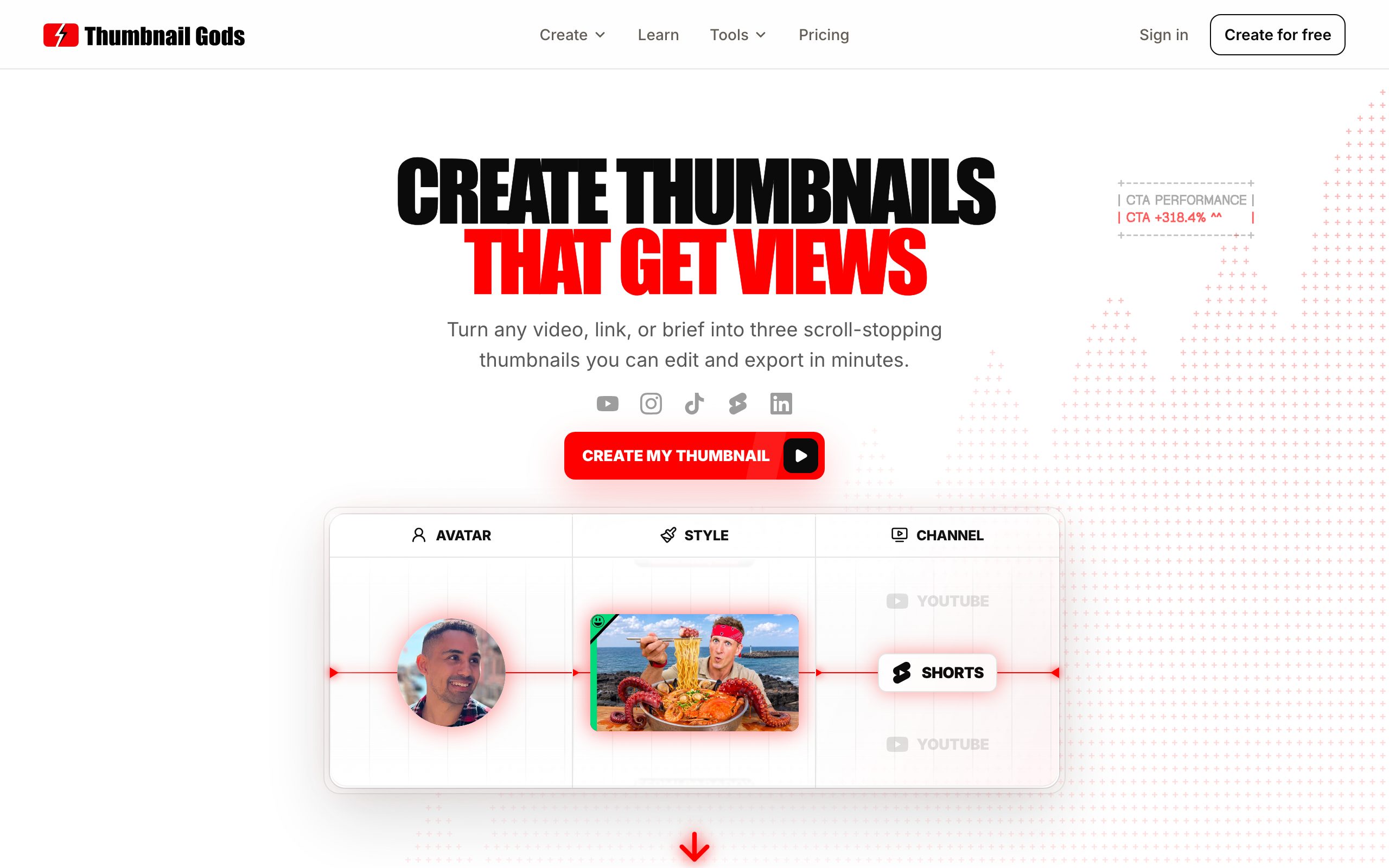
You can produce a flawless video and still lose. The thumbnail and title are the only things a viewer sees before deciding, and the thumbnail carries most of that weight. That is why the thumbnail tool ranks first: it is the single piece of software in this list that changes whether the video is watched at all.
Thumbnail Gods turns a video, a supported public link, or a one line brief into three genuinely different, editable thumbnail concepts. It reads your source for the real hook instead of asking you to describe a picture, then builds a frame around it. You get three directions to compare, not one render to accept.
Two things set it apart from every generic image tool. First, it does AI and non-AI in the same canvas. Generate three concepts with AI, then edit by hand: rewrite the headline as a live layer, change one region without regenerating the whole image, or drop in your own photo. Nothing is flattened, so a layer you set today is still editable next week. Second, it is native to every platform. One brief reflows into a 1280x720 YouTube thumbnail, a vertical Shorts or Reels cover, a TikTok cover, and a LinkedIn video frame, each with its own safe zones kept clear.

Who it is for: solo creators who want feed-ready thumbnails without design skills, and professionals who need brand-safe output on a deadline. Clippers and agencies get the part that matters most at volume, the automation layer. Generate the concepts in the studio, then let a signed outgoing webhook tell the rest of your stack when they are ready.
Pricing is honest: start free with 3 thumbnails and no credit card, then Creator at 29 per month for 100 thumbnails, Studio at 59 for 300, and Professional at 99 for 700, built for companies, agencies, clippers, and faceless channels at high volume.
The rest of this list makes your video better. Keep that in perspective: better footage feeds a stronger thumbnail, but the thumbnail is still what turns an impression into a view.
2. Descript, the editor that works like a document
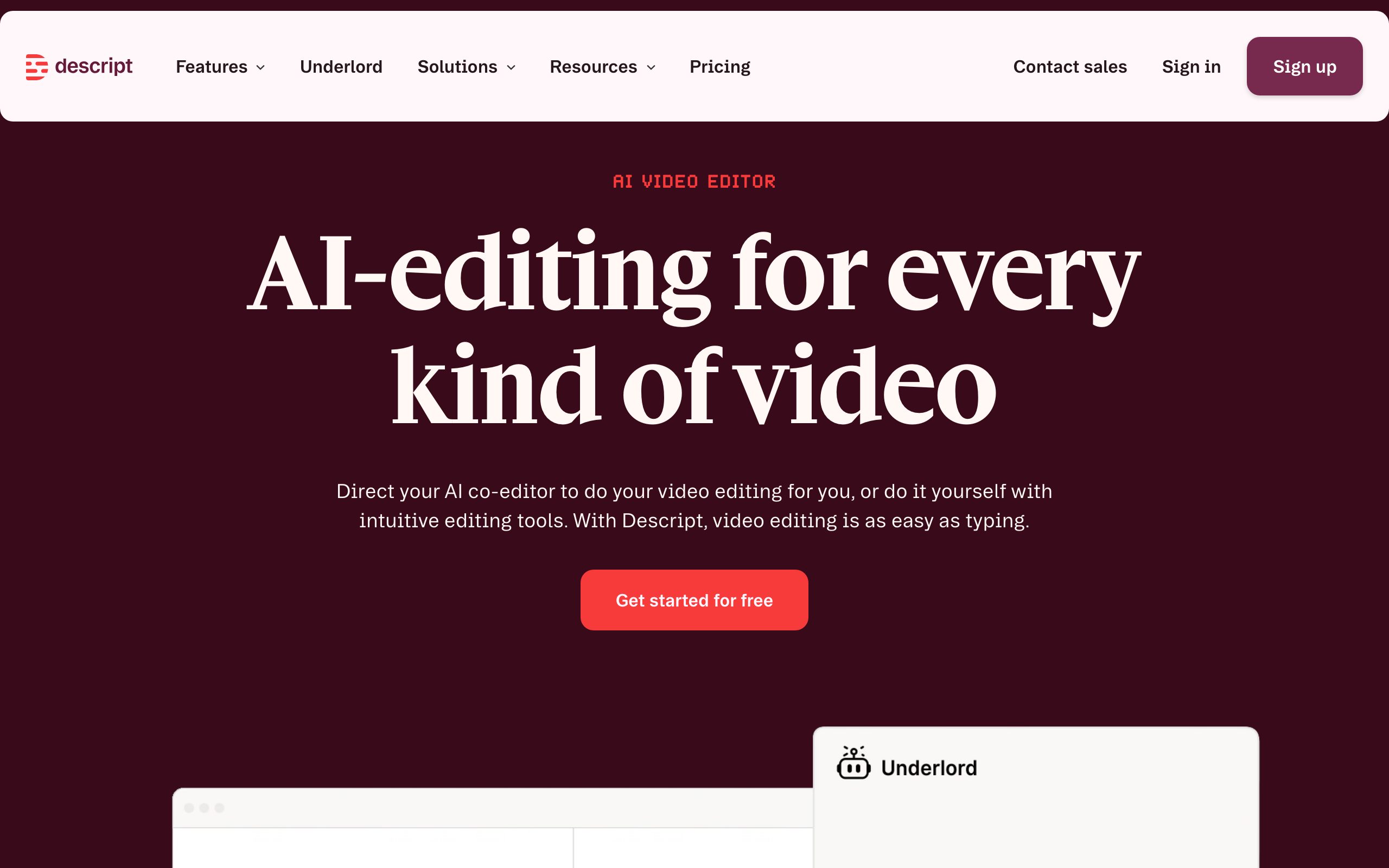
Descript lets you edit video by editing the transcript. Delete a sentence, the footage goes with it. Add in studio sound, filler word removal, and a capable screen recorder, and it becomes the fastest way for talking-head and tutorial creators to cut an episode. Who it is for: podcasters, educators, and solo YouTubers who would rather edit words than timelines.
Pros
- Transcript-based editing is genuinely fast for talking-head and tutorial cuts
- Strong AI cleanup: filler-word removal, Studio Sound, and Overdub voice cloning
- Capable screen recorder and a smooth multitrack podcast workflow
Cons
- Weak for motion graphics, heavy effects, or fast visual editing
- AI voice and overdub can sound uncanny, and long projects get sluggish
- The features most creators want sit on the higher tiers
Pricing: Free plan; paid tiers from around $16 per month, billed yearly.
3. OpusClip, long video into short clips
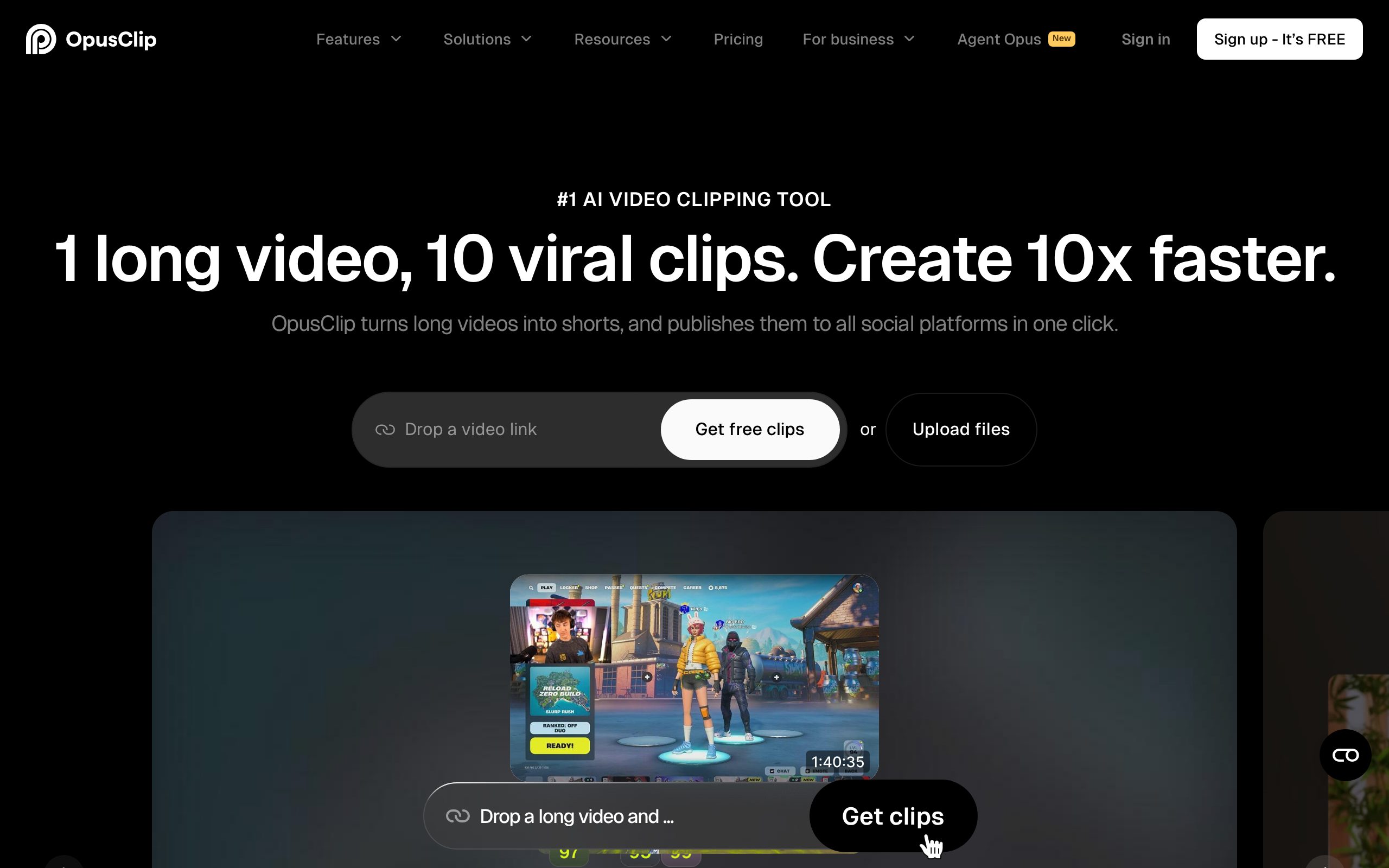
OpusClip scans a long upload, finds the moments most likely to perform, and cuts them into vertical clips with captions and a hook. For creators repurposing one long video into a week of shorts, it removes hours of manual clipping. Who it is for: podcasters and long-form channels feeding Shorts, Reels, and TikTok.
Pros
- Finds high-potential moments automatically and reframes them to vertical
- A virality score and auto-captions save hours of manual clipping
- Turns one long video into a week of Shorts, Reels, and TikToks
Cons
- The AI's "best moment" picks still need a human eye
- Captions and layouts feel generic without manual tuning
- It makes clips, not covers, so pair each one with a thumbnail you can A/B test
Pricing: Free plan with limited exports; paid from around $15 per month, billed yearly.
4. Runway, generative video when you cannot film it

Runway is the creative-model pick. Text to video, image to video, restyling, and inpainting let you produce shots that never existed. It is not a full channel workflow, but for intros, B-roll, and effects it opens doors a camera cannot. Who it is for: creators and editors who want generative footage and are comfortable directing a model.
Pros
- Genuinely novel generative shots you cannot film with a camera
- Great for intros, B-roll, restyles, and effects
- Fast-moving models that improve month over month
Cons
- Credit-based pricing gets expensive at high volume
- Clip length and shot-to-shot consistency still have limits
- A specialized tool, not a full editing or publishing workflow
Pricing: Free trial credits; paid from around $15 per month, with credit add-ons.
Turn your next video into scroll-stopping thumbnails
Create a thumbnail5. Pictory, scripts and articles into video

Pictory turns a script, a blog post, or a long recording into a captioned video with stock footage and voiceover. The output is templated, but for faceless explainer and summary channels it is a fast path from text to a watchable upload. Who it is for: faceless and repurposing channels that start from written content.
Pros
- Turns a script, article, or long recording into a video fast
- Auto-selects stock footage and adds voiceover and captions
- Low learning curve for text-first, faceless channels
Cons
- Output looks templated and stock-heavy
- Limited fine control over pacing and visuals
- Voiceovers can sound robotic without editing
Pricing: From around $19 per month, billed yearly; free trial rather than a free plan.
6. Synthesia, avatar video from a script
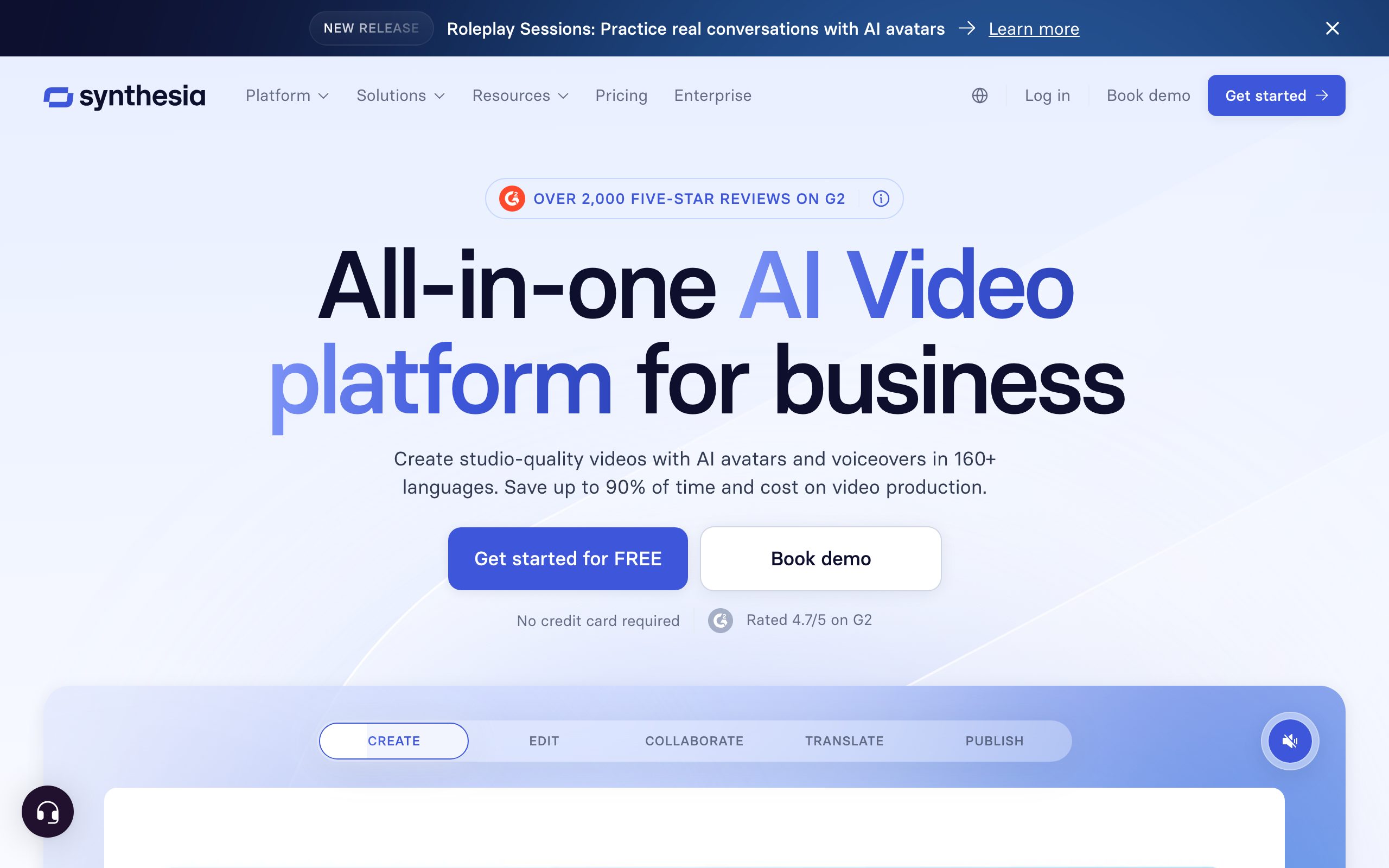
Synthesia builds videos from AI avatars and text in dozens of languages. It is aimed more at training and corporate content than entertainment, but for faceless channels it produces consistent presenter-led video without a camera. Who it is for: faceless educators and teams localizing content at scale.
Pros
- Convincing AI avatars and voices in 140+ languages
- Consistent presenter-led video with no camera or studio
- Strong for training, explainers, and localized content
Cons
- Built for corporate use, so it can feel formal for entertainment
- Avatars still read as synthetic to many viewers
- Minutes-based limits on the lower tiers
Pricing: Free plan with limited minutes; paid from around $18 per month, billed yearly.
7. HeyGen, avatars and translation

HeyGen overlaps with Synthesia on avatars and pushes hard on translation and lip-sync, so one video can ship in many languages with the mouth movement matched. Who it is for: creators and businesses going multilingual, or anyone testing a faceless format before committing to camera.
Pros
- Avatars plus best-in-class translation and lip-sync
- Ship one video in many languages with matched mouth movement
- Fast avatar creation, including from your own footage
Cons
- Realistic output can still drift into uncanny territory
- Credit and minute limits add up for heavy use
- Best for talking-head formats, not cinematic video
Pricing: Free plan; paid from around $24 per month, billed yearly.
8. CapCut, the free editor with AI built in
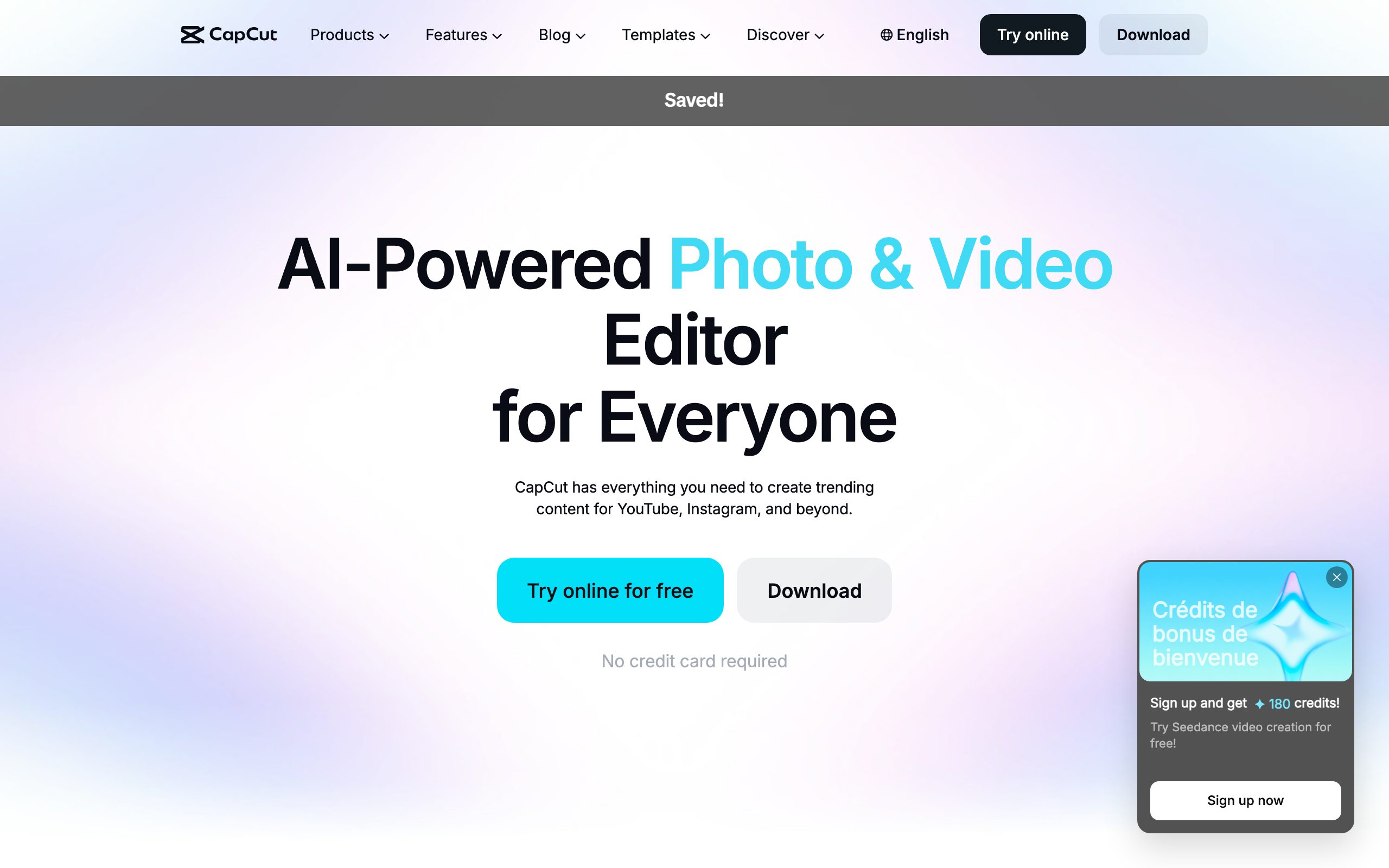
CapCut remains the default free editor for short-form. Auto-captions, background removal, templates, and a deep effects library cover most of what a mobile-first creator needs. Who it is for: creators who want a capable editor at no cost, especially for TikTok, Shorts, and gaming clips.
Pros
- Genuinely capable and free, with auto-captions and background removal
- Huge template and effects library for the short-form look
- Works on mobile and desktop with a gentle learning curve
Cons
- Templated looks are everywhere, so it is easy to blend in
- Some assets and pro features sit behind a paywall
- Data and export policies have raised concerns for some teams
Pricing: Free; Pro from around $10 per month.
9. Veed.io, editing in the browser
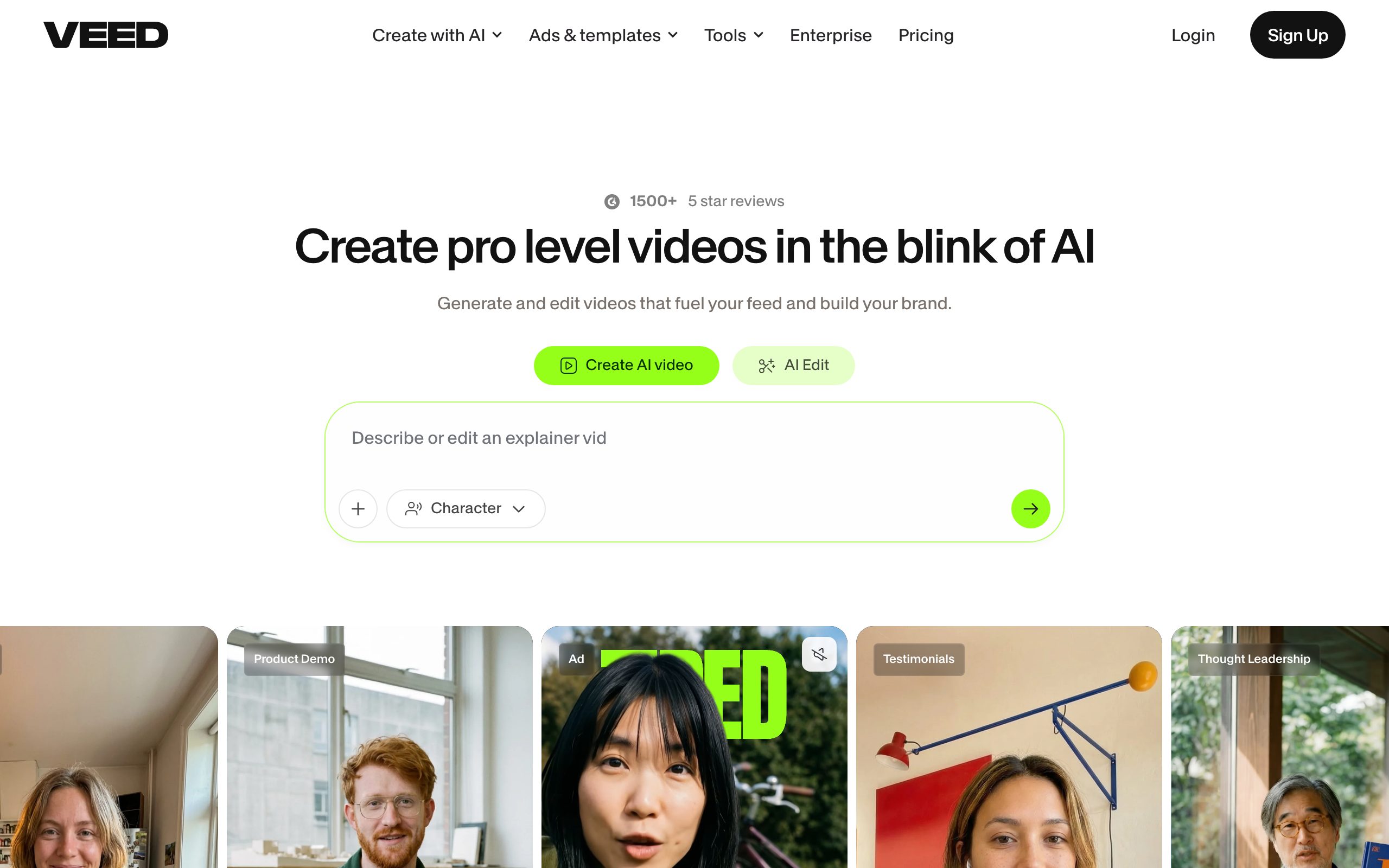
Veed is a browser-based editor with auto-subtitles, a clean interface, and team features. It trades the ceiling of a desktop editor for speed and zero setup. Who it is for: teams and creators who want to edit and collaborate without installing software.
Pros
- A full editor in the browser with nothing to install
- Auto-subtitles, translation, and clean collaboration for teams
- Fast for social clips and quick turnarounds
Cons
- Lower ceiling than a desktop editor for complex projects
- Rendering can be slow and depends on your connection
- The best features sit on higher tiers
Pricing: Free plan; paid from around $18 per month, billed yearly.
10. Submagic, short-form captions and b-roll
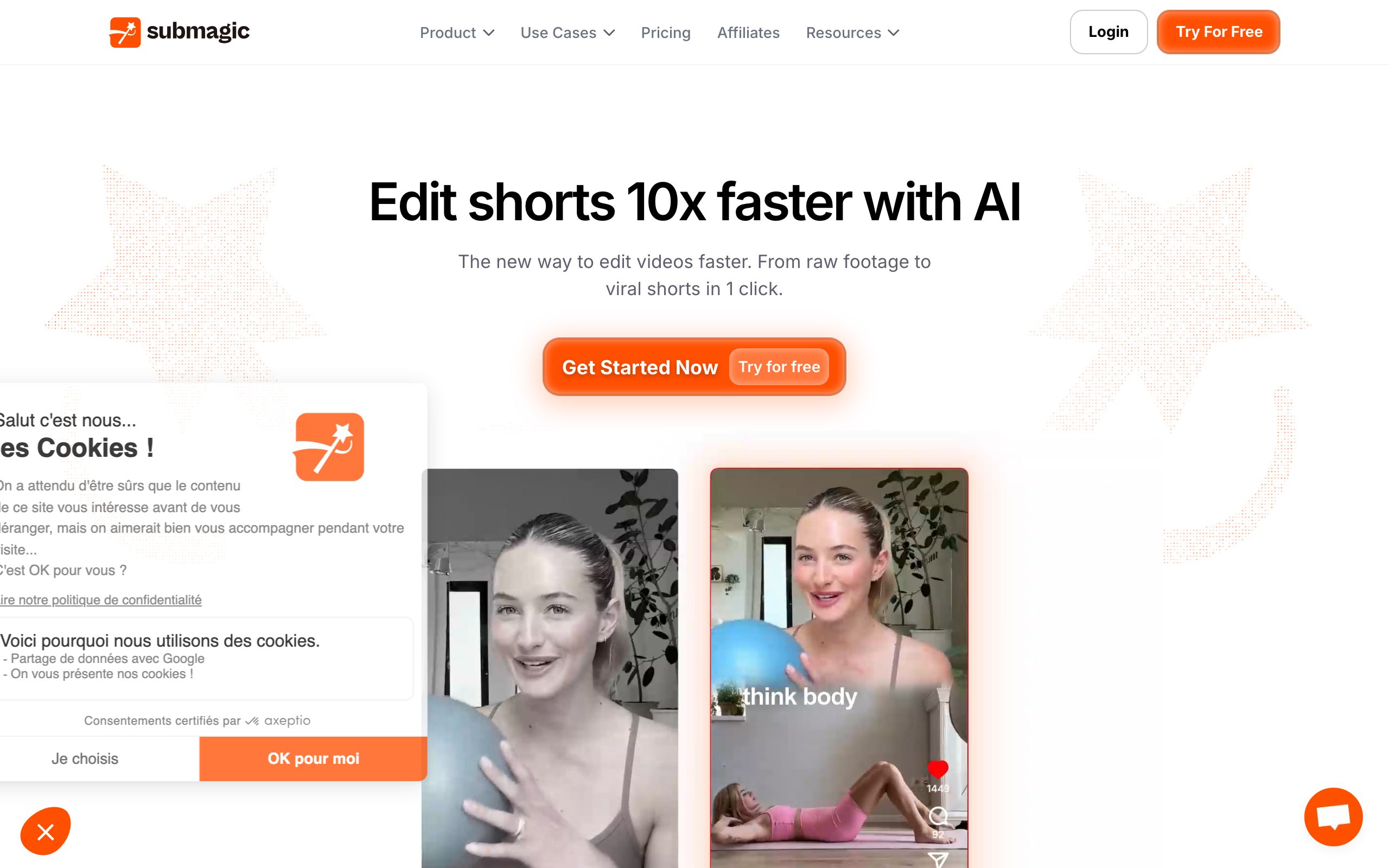
Submagic specializes in the animated captions, zooms, and b-roll that define the short-form look. Feed it a clip and it returns a punchy, ready-to-post short. Who it is for: clippers and short-form creators who want the trending caption style without editing it frame by frame.
Pros
- Nails the trending caption, zoom, and b-roll style in one pass
- Very fast from raw clip to ready-to-post short
- Auto-adds emojis, keywords, and sound effects
Cons
- The signature look is popular, so many shorts feel similar
- Less control than editing captions by hand
- Focused on shorts only, not long-form
Pricing: From around $16 per month, billed yearly; trial available.
How to build your AI video stack
You do not need all ten. A working stack is usually an editor, an optional avatar or generative tool, a clipping tool if you post shorts, and a thumbnail tool for every upload. The editor and clipper produce the video. The thumbnail tool produces the click. When you need a still to build from, you can pull a frame from any YouTube video, then make sure the final image is sized right for each platform and compressed under the upload limit before you publish.
For anyone operating at volume, the deciding factor is automation. A hobby channel can make one thumbnail by hand. A clipping team producing dozens of videos a week cannot, which is why the connective surface matters more than any single feature.
Common mistakes when choosing AI video software
The most common mistake is buying for the demo instead of the workflow. A tool that produces a jaw-dropping clip in a controlled demo can still be miserable to use every week, because your real footage is messier than the sample and your deadline is real. Judge tools on your own worst video, not their best sample.
The second mistake is stacking overlapping tools. Two editors, two clippers, and three avatar apps do not make a channel, they make a subscription pile. Pick one tool per job and go deep. The only category most channels underinvest in is the one that actually moves views, which is the thumbnail.
The third mistake is treating output as final. Generative tools are improving fast, but the value is in what you can change afterward. A locked export you cannot refine is a dead end. Favor tools that hand you something editable, whether that is a project timeline, a caption track, or a layered thumbnail you can rework in seconds.
Get those three right and the tool list almost picks itself. Buy for your workflow, one per job, and keep everything editable.
The bottom line
Rank AI video software by what it changes. Most of these tools make a better video, and better video is worth paying for. But the thumbnail is the one asset that changes whether the video is watched, and it is the cheapest, fastest lever you have. Start with the click, then spend the rest of your budget on the footage behind it. If you want to go deeper on the packaging side, our breakdown of the best thumbnail software compares the tools built for exactly that.
Bring your next video, link, or brief to Thumbnail Gods and get three editable, platform-native concepts in about a minute. Free to start, no credit card, and it plugs into whatever the rest of your stack produces.
Frequently asked questions
- What is the best AI video software for YouTube?
- It depends on the job. For editing, Descript and CapCut lead. For clips, OpusClip. For generative footage, Runway. For avatars, Synthesia or HeyGen. For the thumbnail that earns the click, Thumbnail Gods. Most channels use two or three together.
- Can AI make a full YouTube video on its own?
- Tools like Pictory and Synthesia can assemble a watchable video from a script or avatar, but the packaging still matters. A weak thumbnail buries even a well-produced video, which is why the thumbnail tool belongs in every stack.
- Is Thumbnail Gods an AI video editor?
- No. Thumbnail Gods is the thumbnail layer of the stack. It turns a video, link, or brief into three editable, platform-native thumbnail concepts, so the video your other tools produced actually gets clicked.
- Which AI video tool is best for clippers and agencies?
- Weight the automation surface. OpusClip and Submagic help produce clips at volume, and Thumbnail Gods sends signed outgoing webhooks so the rest of your stack hears when thumbnails are ready.
Matteo Le Floch
Co-Founder @Thumbnail Gods
Founder of Thumbnail Gods. Writing about thumbnail design, packaging, and the craft of earning the click.
Keep reading
Hand-picked reads to sharpen your next thumbnail.
 Comparisons
3 Serious Thumbmagic Alternatives (2026)
Most Thumbmagic alternatives are template editors in disguise. Here are the three people actually consider, ranked by how serious they really are.
 Comparisons
7 Best Thumbnail Software (2026, Honestly Reviewed)
Two thumbnail tools are serious about the click. The other five are design apps wearing a thumbnail label. Here is the honest ranking.
 Thumbnail Gods
Put the idea into practice
Bring your next video and explore original thumbnail directions in one focused workflow.